
Saving a status is the easy part. A week later, when you want to send that video to someone or move it to your computer, the question becomes: where did it go? On Android, saved photos and videos live in ordinary folders on your phone, but different apps use different folders, and gallery apps sort things in their own way. This guide explains where saved statuses end up and how to find, organise and back them up.
Two different copies: the status and the saved file
It helps to know that there are two copies involved:
- The status copy. When you view a status in your messaging app, your phone downloads the photo or video into a hidden folder that belongs to that app. This copy is temporary. Once the status expires, it can be removed, and you should not rely on it.
- The saved copy. When you save a status, a status saver copies the file into a normal, visible folder on your phone. This copy is yours. It stays until you delete it, even after the original status has disappeared.
So if you saved a status and later cannot find it, you are looking for the saved copy, in a regular photo or video folder.
Where Status Saver puts your files
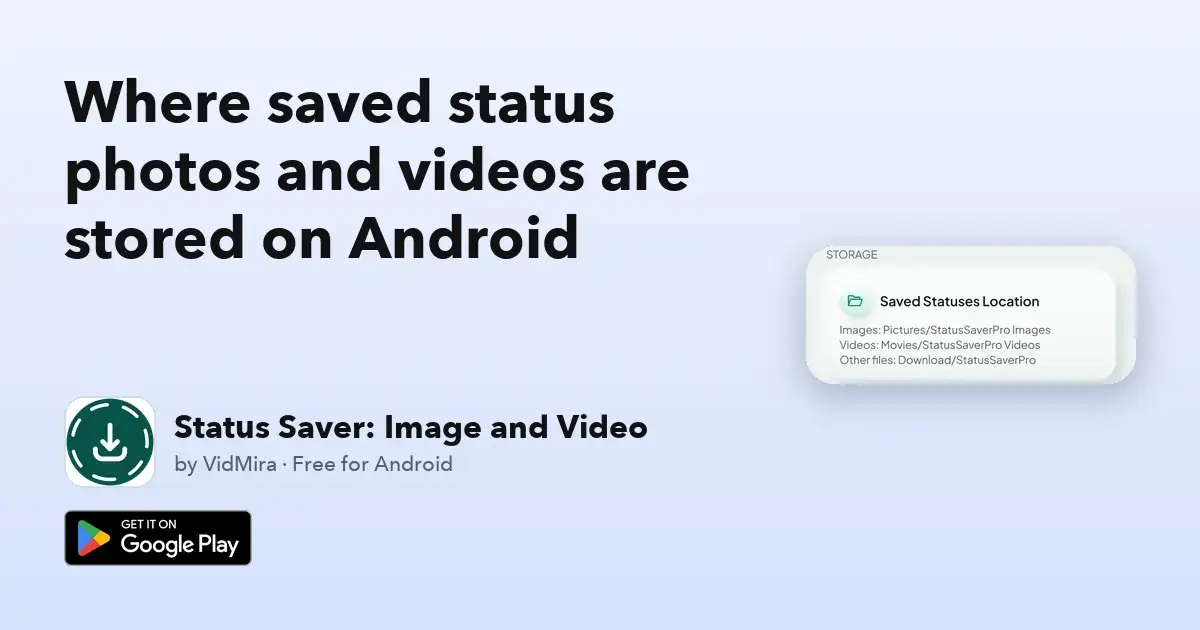
Our app, Status Saver: Image and Video, sorts saved files by type, into the standard folders Android uses for pictures and movies:
- Photos: in the Pictures folder, in a folder named
StatusSaverPro Images. - Videos: in the Movies folder, in a folder named
StatusSaverPro Videos.
Because they are in Pictures and Movies, your gallery app picks them up automatically. Most galleries show them as albums with the same names. Inside the app, everything you have saved is also listed in the Saved tab, and the app's settings show the saved statuses location.
Finding them in your gallery
- Open your phone's gallery app, for example Google Photos or the gallery that came with your phone.
- Go to the albums or folders view, not the main timeline.
- Look for StatusSaverPro Images and StatusSaverPro Videos.
In Google Photos, device folders are listed under the Collections or Library tab, depending on your version. If a folder does not show up straight away, give the phone a moment: Android scans new files in the background, and new albums can take a little while to appear.
Finding them with a file manager
If you prefer to see the actual folders, open a file manager such as Files by Google or the one your phone came with:
- Open your internal storage.
- Open Pictures and then StatusSaverPro Images for photos.
- Open Movies and then StatusSaverPro Videos for videos.
From the file manager you can rename files, move them into your own folders, or select several at once to share or copy.
Why you might not find a status you thought you saved
- It was never saved. Opening a status inside a status saver only previews it. The file is saved when you tap Save. Check the Saved tab: if it is not there, it was not saved.
- You are looking in the wrong album. Photos and videos go to separate folders, so a video will not appear in the images album.
- You deleted it from the Saved tab. Deleting there removes the saved file from your phone as well. Status Saver can ask you to confirm before deleting; you can switch that confirmation on in the settings.
- A cleaner app removed it. Some storage cleaners remove large videos. If you use one, check what it deletes.
Backing up what you want to keep
Saved files are stored only on your phone. If the phone is lost, reset or replaced, they go with it unless you have a backup. A few simple options:
- Cloud photo backup. In Google Photos you can choose which device folders are backed up. Turn on backup for the StatusSaverPro Images and StatusSaverPro Videos folders if you want them included.
- Copy to a computer. Connect your phone with a USB cable, choose file transfer on the phone, and copy the two folders from Pictures and Movies.
- Move favourites into your own album. If you keep only a few special statuses, moving them into a named album of your own makes them easy to find years later.
A note on respect
A status was shared with you by someone you know. Keeping a family video or a friend's message for yourself is one thing; passing it on is another. Ask before you share someone else's photo or video further, and never repost personal content without permission.
Get the app
Status Saver: Image and Video is free on Google Play for Android phones. It saves the photo and video statuses you have viewed to your gallery in one tap, shows business statuses too, and lets you choose to see statuses from the last 24 hours, the last 7 days or all time. On your phone, the short link vidmira.com/get/status-saver takes you straight to it.
Status Saver by VidMira is an independent app. It is not affiliated with, endorsed by or sponsored by any messaging service. Please respect other people's privacy and only save and share content you have permission to use.