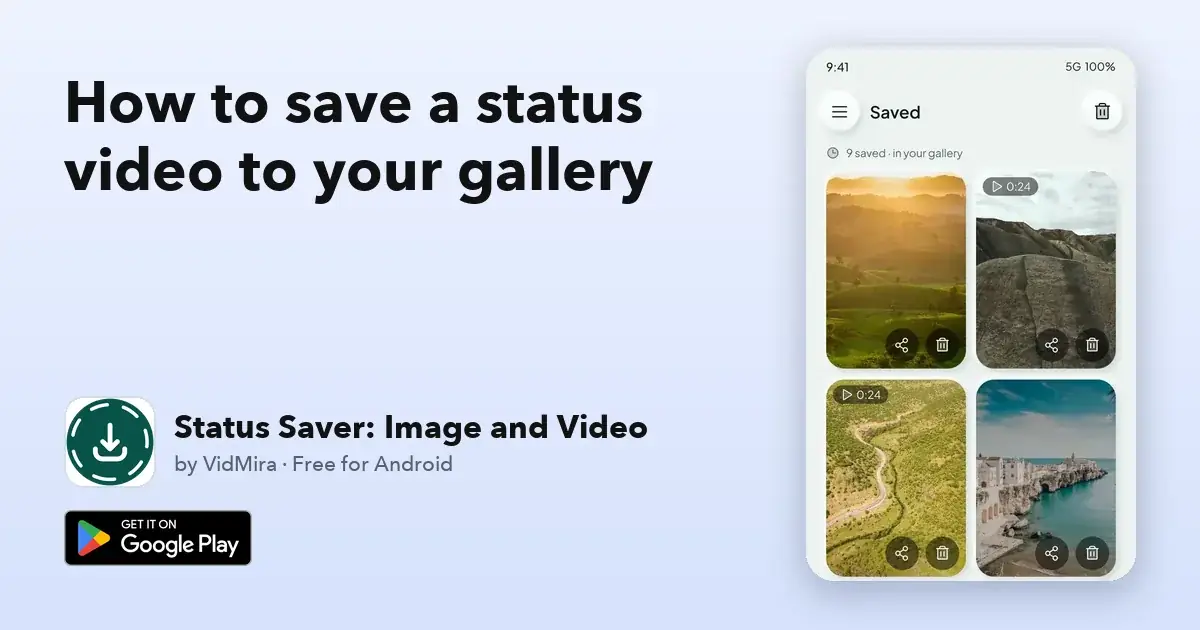
To save a status video to your gallery on Android, open it in Status Saver: Image and Video and tap the download button. The video goes straight to your phone's gallery and the app's Saved tab, in its original quality, with sound.
At VidMira we build apps that make everyday things easier, and we built Status Saver: Image and Video so saving a video you love takes one tap.
Save a status video in 3 steps
- Watch the video status in WhatsApp.
- Open Status Saver and tap the Videos tab.
- Tap the download button on the video. Done: it is in your gallery.
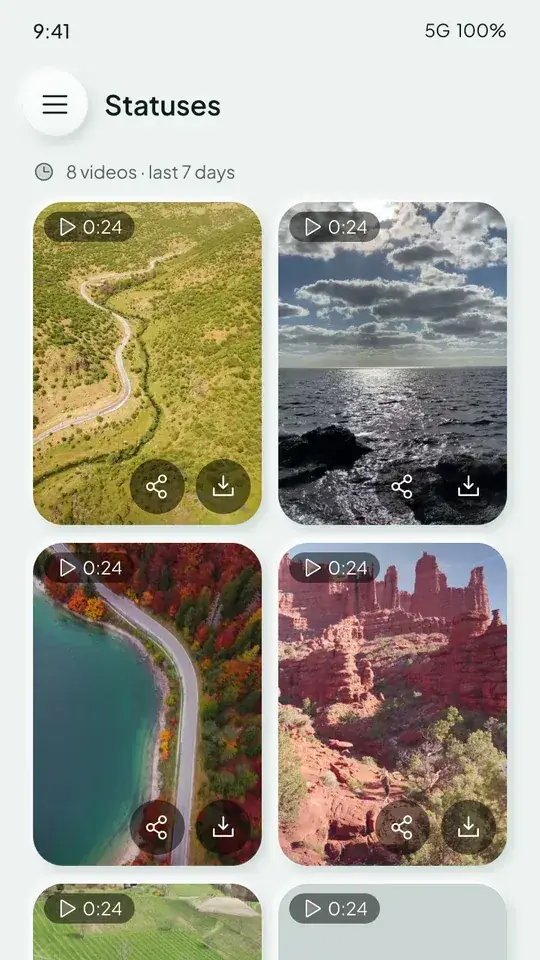
The first time, Status Saver shows you how to give it access to your statuses. It takes a few seconds and you only do it once.
Watch it full screen first
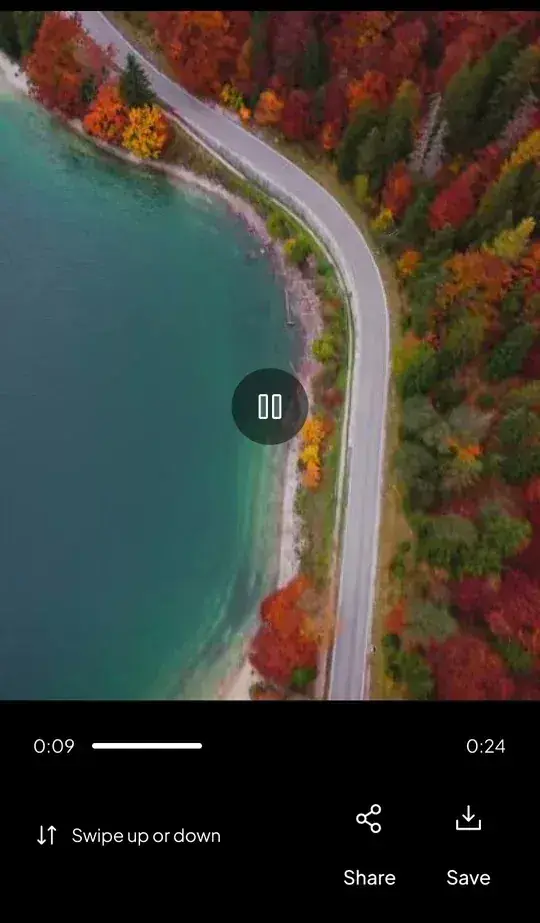
Not sure which one you want? Tap a video to play it full screen, swipe up or down to the next one, and tap Save when you find it. Videos play on repeat, so you never miss the moment.
Find your saved videos
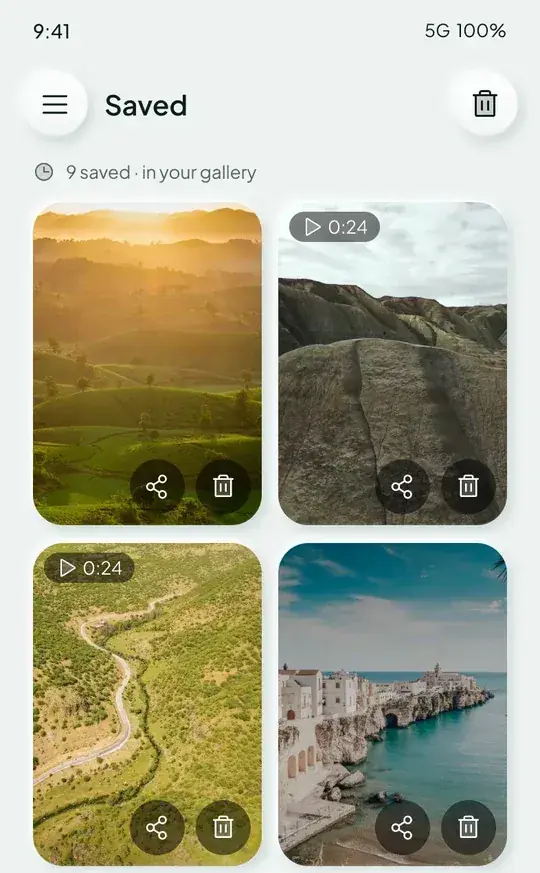
Everything you save is in two places: the Saved tab inside the app, and your phone's gallery, next to your other videos. From either one you can watch it, share it or back it up.
Why people choose Status Saver: Image and Video
We think it is the easiest way to save status videos on Android, and here is why:
- One tap to save. Straight to your gallery, no screen recording, no lost quality.
- Videos in their own tab. Photos and videos are kept apart, so you find a video fast.
- Full screen, endless swiping. Watch one video after another; each one plays on repeat.
- Share in one tap. Send a video to friends or other apps right from the player.
- Up to 7 days of statuses. Videos you viewed earlier in the week are still there to save.
- Regular and Business statuses. One app for both accounts.
- No ad after every tap. Save video after video without interruptions, or turn every ad off with Ad-free.
Get Status Saver
Status Saver: Image and Video is free on Google Play for Android phones and tablets. Ad-free removes every ad, monthly or yearly, with a 7-day free trial on the yearly plan, and one subscription covers every phone on your Google account. On your phone, vidmira.com/get/status-saver opens it in Google Play.
New to Status Saver? Start with how to save status videos and photos on Android, or see how to see statuses after 24 hours.
Common questions
Does the saved video keep its sound and quality?
Yes. Status Saver saves the video file as it was posted, with its sound, so it looks the same as in WhatsApp.
Where do saved status videos go?
To your phone's gallery and the Saved tab in Status Saver. You can also copy them to a computer like any other video (Android Help).
Do I need to watch the video first?
Yes. Watch it in WhatsApp first; then it appears in Status Saver, ready to save. Statuses disappear from WhatsApp after 24 hours (WhatsApp Help Center).
Does the person know I saved their video?
No. Saving keeps a copy on your phone and does not send them anything.
Status Saver by VidMira is an independent app. It is not affiliated with, endorsed by or sponsored by WhatsApp or Meta. WhatsApp is a trademark of WhatsApp LLC. Please respect other people's privacy and only save and share content you have permission to use.


Related guides
How to save status videos and photos on Android
How to save status videos and photos on Android before they disappear after a day: the steps, where the files go and how to do it respectfully.
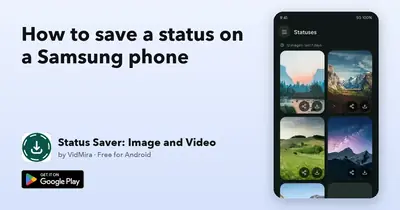
How to save a status on a Samsung phone
Save a status on a Samsung Galaxy phone with Status Saver: one tap to your Gallery, on Galaxy phones, tablets and foldables. Free on Google Play.
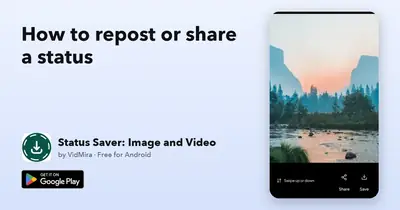
How to repost or share a status
Repost or share a status on Android in one tap with Status Saver: send it to a chat, post it to your own status or share it to any app, in original quality.
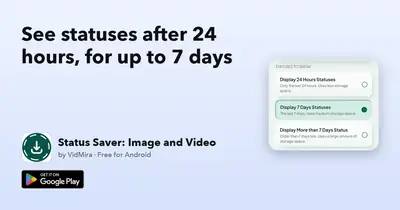
See statuses after 24 hours, for up to 7 days
See statuses after 24 hours with Status Saver: the photo and video statuses you viewed stay for up to 7 days, ready to watch again, save or share.
Latest posts
California road signs test: shapes, colors and a quiz
California road signs test: what sign shapes and colors mean, from the Driver's Handbook, plus a road signs quiz. Practice in CA DMV Permit Test Center.
Canadian citizenship test flashcards on your phone
Canadian citizenship test flashcards: flip, hear the answer, mark "I knew it" or review it again. Free in Canada Citizenship Test Center for iPhone and Android.
NJ e-bike and moped license: the permit test under the 2026 rules
NJ e-bike license under the 2026 rules: age 15, a permit, knowledge and vision tests, a road test. Practice e-bike quizzes in NJ DMV Permit Practice Test.